

Chat & Edit Mode Guide
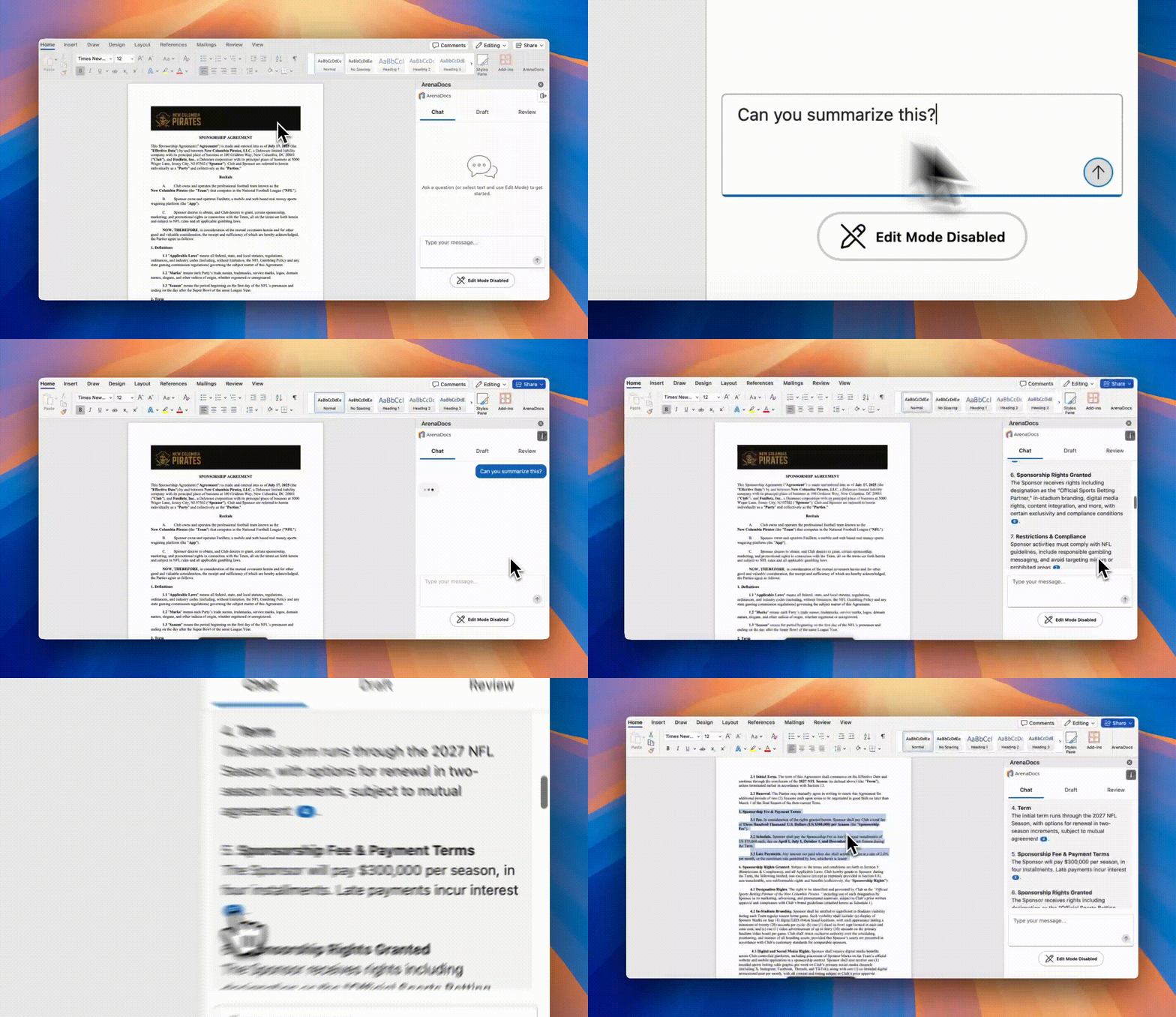
Master the Chat tab for document Q&A and inline editing.
Table of Contents
Overview
The Chat tab is the primary interface for conversational interaction with your documents. It operates in two modes:
| Mode | Purpose | Activation |
|---|---|---|
| Chat Mode | Document Q&A | Default |
| Edit Mode | Inline text editing | Toggle button |
Document Q&A
Ask questions about your document in natural language and receive AI-powered answers with precise citations.
Types of Questions
Factual Questions
What is the termination notice period?
Who are the parties to this agreement?
What is the total contract value?
When does the agreement expire?
Analytical Questions
Are there any provisions that favor the other party?
What are our obligations under this agreement?
Identify any one-sided indemnification clauses
Compare the insurance requirements to industry standards
Summary Requests
Summarize the key terms of this agreement
Give me a bullet-point overview of Section 5
What are the main differences between sections 3 and 7?
Risk Assessment
What are the main risks in this agreement?
Identify any unusual or non-standard provisions
Are there any clauses that could expose us to liability?
Response Format
AI responses are formatted for readability:
- Bold headers for section organization
- Italics for emphasis
- Bullet points for lists
- Clickable citations that link to document sections
Understanding Citations
AI responses include citations that link directly to specific sections in your document.
How Citations Work
- Citations appear as clickable links in the AI's response
- Click any citation to jump directly to that section in your document
- The relevant text will be highlighted so you can see exactly what the AI is referencing
Citation Best Practices
- The AI cites thoughtfully—not every statement needs a citation
- Citations point to the source of information, not necessarily the full context
- When asking follow-up questions, the AI maintains awareness of previous citations
Edit Mode
Edit Mode transforms the Chat tab into a powerful inline editing tool.
Enabling Edit Mode
- Look for the Edit Mode toggle at the bottom of the Chat panel
- Click to enable—the toggle will show "Edit Mode" is active
- The input placeholder changes to indicate you're in editing mode
Making an Edit
Step 1: Select Text
In your Word document, highlight the text you want to modify. This can be:
- A single sentence
- Multiple paragraphs
- An entire clause or section
Step 2: Write Instructions
Describe the changes you want in natural language:
Good Instructions:
Make this clause more protective of our intellectual property
Add a 30-day cure period before termination
Change the jurisdiction from New York to California
Strengthen the confidentiality provisions
Remove the arbitration requirement
Specific Instructions:
Replace "reasonable efforts" with "best efforts" and add
a specific timeline of 30 days for performance
Contextual Instructions:
Revise this indemnification clause to match the language
in our standard vendor agreement template
Step 3: Submit
Press Enter or click the send button to submit your edit request.
Redline Preview
After submitting an edit, you'll see a redline preview showing proposed changes.
Reading the Redline
| Visual | Meaning |
|---|---|
| Green underlined text | Added text |
| Red strikethrough text | Deleted text |
| Regular text | Unchanged |
Redline Components
The redline view includes:
- Visual Diff - Clear comparison showing what's changed
- Change Summary - AI explanation of the modifications
- Sources Used - Templates that influenced the revision (when applicable)
Accepting Changes
When you accept changes, you have options:
| Option | Description |
|---|---|
| Track Changes | Enables Word's track changes feature |
| Add Comments | Inserts an explanatory comment |
| Accept | Applies changes to document |
Rejecting Changes
Click Reject to:
- Cancel the proposed changes
- Keep original text intact
- Return to Chat for new instructions
Iterating on Changes
If the changes aren't quite right:
- Click Reject to cancel
- Refine your instructions
- Submit again for a new revision
Advanced Techniques
Combining Q&A with Editing
Use Chat mode to analyze, then Edit mode to fix:
[Chat Mode]
User: Are there any issues with the indemnification clause?
AI: The indemnification in Section 7 is one-sided...

[Switch to Edit Mode, select Section 7]
User: Revise to make this mutual indemnification with
      standard carve-outs
Contextual Editing
Reference previous discussion:
[Chat Mode]
User: Compare our termination rights to theirs
AI: You have 30-day notice, they have immediate termination...

[Edit Mode]
User: Fix this imbalance, giving us the same rights
Bulk Editing Strategy
For multiple changes:
- Run a Review first to identify issues
- Work through issues one at a time
- Use "Open in Edit Mode" from Review results
Maintaining Style Consistency
The AI attempts to match your document's style. Help it by:
- Keeping consistent terminology in instructions
- Referencing specific templates or agreements
- Describing tone (formal, business-friendly, etc.)
Complex Revisions
For substantial changes, break into steps:
Step 1: Revise the structure to add three subsections
Step 2: Strengthen the remedies in subsection (a)
Step 3: Add audit rights in new subsection (b)
Step 4: Add a limitation on liability in subsection (c)
Troubleshooting
"Please select text to edit"
You must have text selected in Word before submitting in Edit Mode.
Changes Don't Apply Correctly
If changes aren't applied as expected:
- Ensure Word document is focused
- Check that selection hasn't changed
- Try selecting a smaller portion of text
Slow Response Times
Large selections take longer to process. Consider:
- Selecting smaller portions
- Working with simpler changes first
Formatting Issues
The AI preserves formatting when possible. If formatting is lost:
- Use Word's formatting tools to restore
- Consider the "Undo" feature if needed
Related Guides
- User Guide - Complete feature overview
- Drafting Guide - Creating new clauses
- Review Guide - Document analysis
- Troubleshooting - Common issues